

How to embed Google Sheets
How to embed Google Sheets on a custom page
- Sign into your Google Account and go to https://docs.google.com/spreadsheets/.
- Under Start a new spreadsheet, create a new blank document and name it something recognizable (ex. "VIP Orders").
-
Enter your data in the sheet (or paste from another program like Excel). Make sure there are headers to identify the columns for users.
- Styling applied to the data in Google Sheets will carry over to the embedded version, so feel free to make any desired changes to the appearance of the information.
- If there is a lot of information or multiple categories shown, it is recommended for the data to be split up into multiple sheets. Create a new sheet by clicking the + icon in the bottom left corner, then double-click the sheet's tab to rename it and call it something recognizable.
Make a new sheet for each category, ex. model name or year, and copy the data from the original sheet to each respective new sheet. - You can use filters to organize the data so that it is easier to divide up.
- Once all sheets and data tables are organized, source the code to embed the document/sheet. Go to File > Publish to the web, then click the Embed tab.
-
From the dropdown, select the first sheet you wish to publish, then press the Publish button. This will populate the textarea below the dropdown with HTML for an iframe to embed the page, similar to the following:
<iframe src="https://docs.google.com/spreadsheets/d/e/################################/pubhtml?gid=##########&single=true&widget=true&headers=false"></iframe> - Copy the code from the textarea and paste it on the page in the location where it needs to appear. For best display results, change these portions of the iframe
srcattribute to configure the embedded sheet's appearance, editing only the portion of the URL that appears after?gid=[ID]&:Default
Parameters:
single=true&widget=true&headers=falseResult:
Configured
Parameters:
rm=minimal&chrome=falseResult:
The
gidportion of the iframe'ssrcURL denotes which sheet to use. The first sheet in the document will have agidof 0, but subsequent sheets will have multi-digit IDs. Make sure thegidparameter is present in the URL and that it corresponds to the correct sheet. You can confirm this information in the Publish to the web screen at any time.Unfortunately, there does not appear to be any official documentation from Google on what all available parameters are and what they configure, so there are not many options for changing the functionality or appearance of the embedded tool.
-
For accessibility, add a
titleattribute to the iframe, summarizing the iframe's contents for users navigating the page with a screen reader, similarly to this:
<iframe src="https://docs.google.com/spreadsheets/d/e/################################/pubhtml?gid=##########&rm=minimal&chrome=false" title="2021 Chevrolet Malibu VIP Vehicles (Coming Soon)"></iframe> -
Add
widthandheightattributes to the iframe so that it resizes responsively and fits the content. Note that there is not a way to make the height of the iframe automatically correspond to the height of the iframe's content, so there may be a vertical scroll on the iframe if the container is smaller than the content. Thewidthshould always be set to100%.
<iframe src="https://docs.google.com/spreadsheets/d/e/################################/pubhtml?gid=##########&rm=minimal&chrome=false" title="2021 Chevrolet Malibu VIP Vehicles (Coming Soon)" width="100%" height="250"></iframe> -
Repeat the above steps for each sheet that needs to be embedded. Below are some examples of how to display the iframes.
If you want to stop publishing a particular sheet, this can be configured from the Publish to the web screen. However, the corresponding iframe will still need to be removed from any page(s) where it is present, so that it does not display broken content.

2021 Chevrolet Silverado
Lorem ipsum dolor sit amet, consectetur adipiscing elit. Sed vitae gravida felis. Quisque egestas molestie dolor. Quisque neque justo, volutpat eu sem eu, elementum ornare felis. Curabitur mollis sem eu hendrerit molestie. In convallis risus eget vestibulum facilisis. Morbi volutpat quam a ipsum vehicula, et facilisis enim tincidunt.
Vehicle Information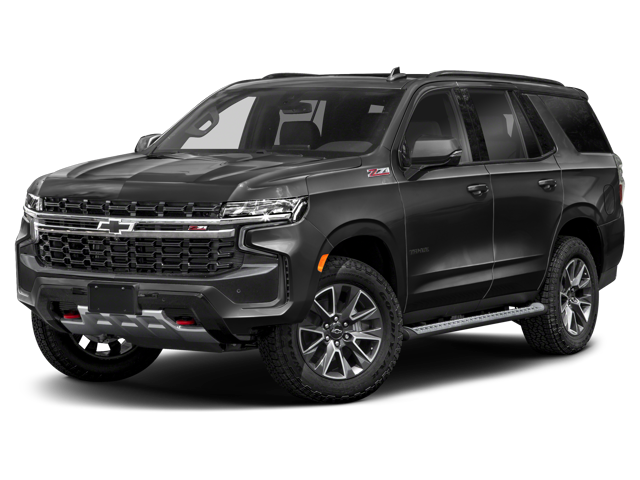
2021 Chevrolet Tahoe
Lorem ipsum dolor sit amet, consectetur adipiscing elit. Sed vitae gravida felis. Quisque egestas molestie dolor. Quisque neque justo, volutpat eu sem eu, elementum ornare felis. Curabitur mollis sem eu hendrerit molestie. In convallis risus eget vestibulum facilisis. Morbi volutpat quam a ipsum vehicula, et facilisis enim tincidunt.
Vehicle Information